



All Laptops
If your current machine is showing its age despite a good clean, our range of the latest laptops offers improved durability and sleeker designs that are even easier to maintain.
Shop now »







Get sales advice from our team 7 days a week
0871 244 0934Give your laptop a fresh start:
A clean laptop does more than just look good; it runs better too. Dust and grime can block vents, causing your processor to work harder and your fans to get louder. Follow our simple steps to keep your tech in top shape and performing like new.
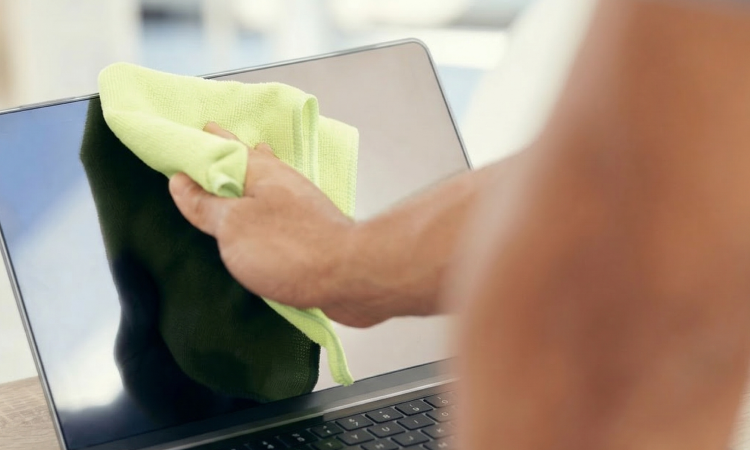
Avoid using harsh household chemicals or paper towels, as these can scratch the delicate display. Instead, use a dry microfibre cloth to gently wipe away fingerprints. For stubborn marks, a small amount of specialised screen cleaner applied to the cloth—never directly to the screen—will do the trick.
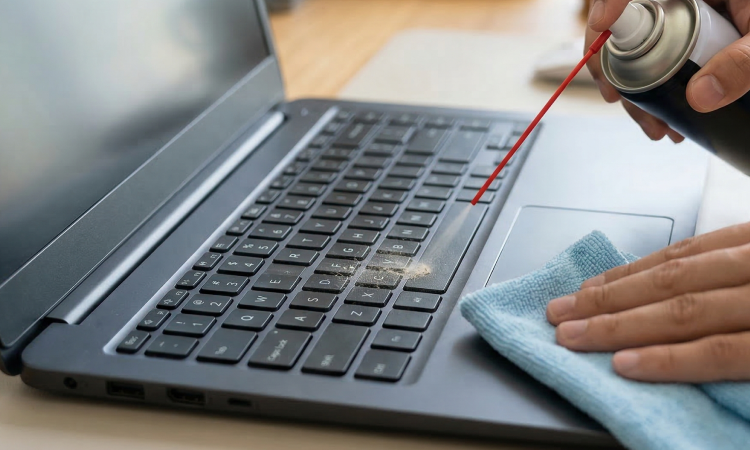
Keyboards are notorious for trapping crumbs and debris. Turn your laptop off and use a can of compressed air to blow out any trapped particles from between the keys. For the surfaces, a lightly dampened lint-free cloth will remove oils and stains without risking moisture damage to the internal parts.
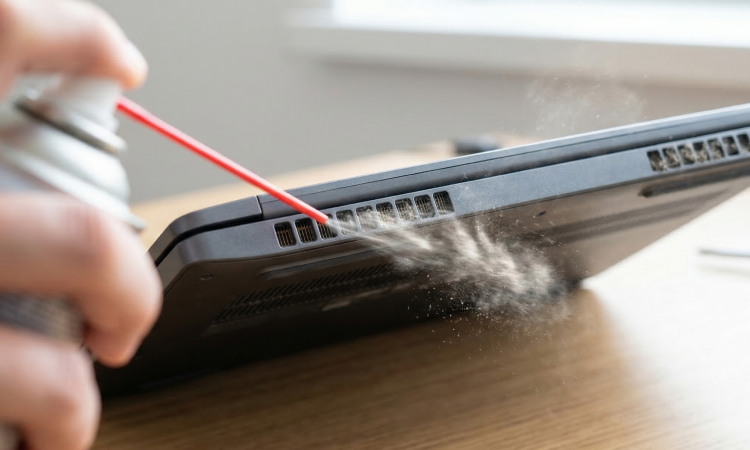
To prevent overheating, check the cooling vents for any visible dust build-up. Using short bursts of compressed air can help clear these paths. If your laptop is still running hot after a clean, it might be time to look at a cooling pad or consider an upgrade to a more efficient, modern model.
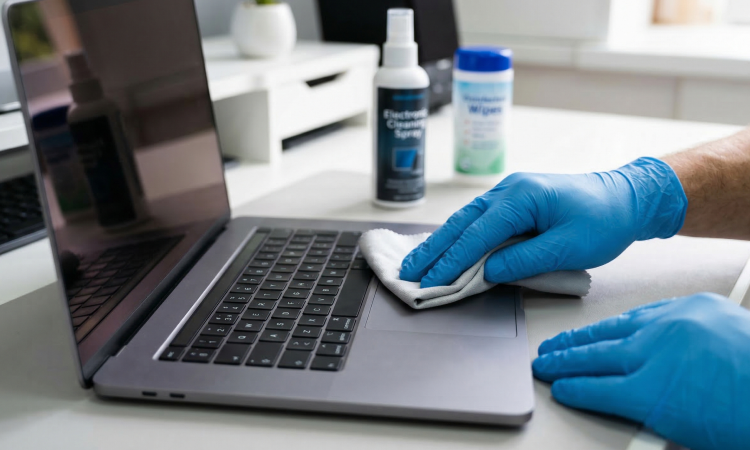
Finish by wiping down the outer casing and palm rests. Keeping these areas clean prevents long-term wear and tear on the chassis.
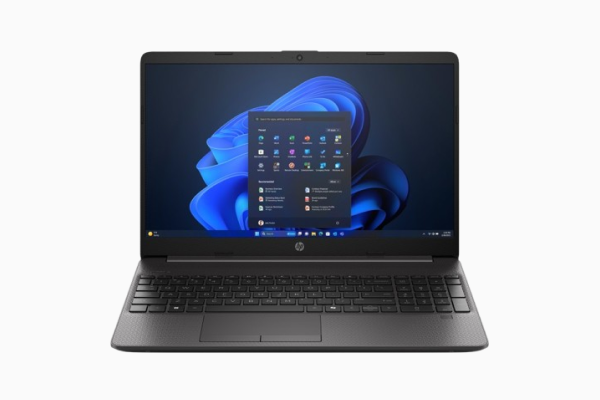
If your current machine is showing its age despite a good clean, our range of the latest laptops offers improved durability and sleeker designs that are even easier to maintain.
Shop now »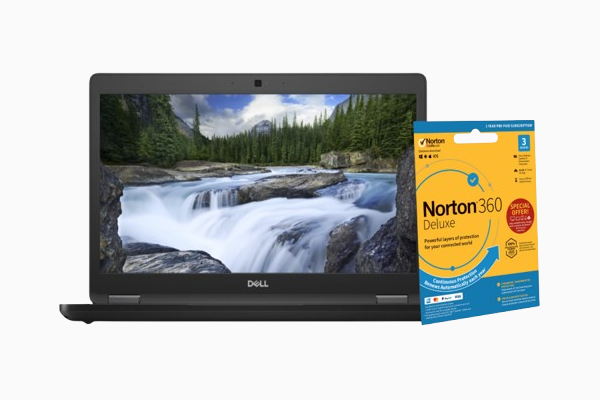
Looking for a high-spec laptop without the premium price tag? The Laptops Direct Refurbished store is your go-to destination for professional-grade tech
Shop now »