











Gaming laptop buying guide
Choose the right gaming laptop
Skip the jargon. We provide a future-focused breakdown of the exact gaming hardware you need. This guide covers everything from high-spec GPUs and multi-core CPUs to memory bandwidth and smart AI upscaling.
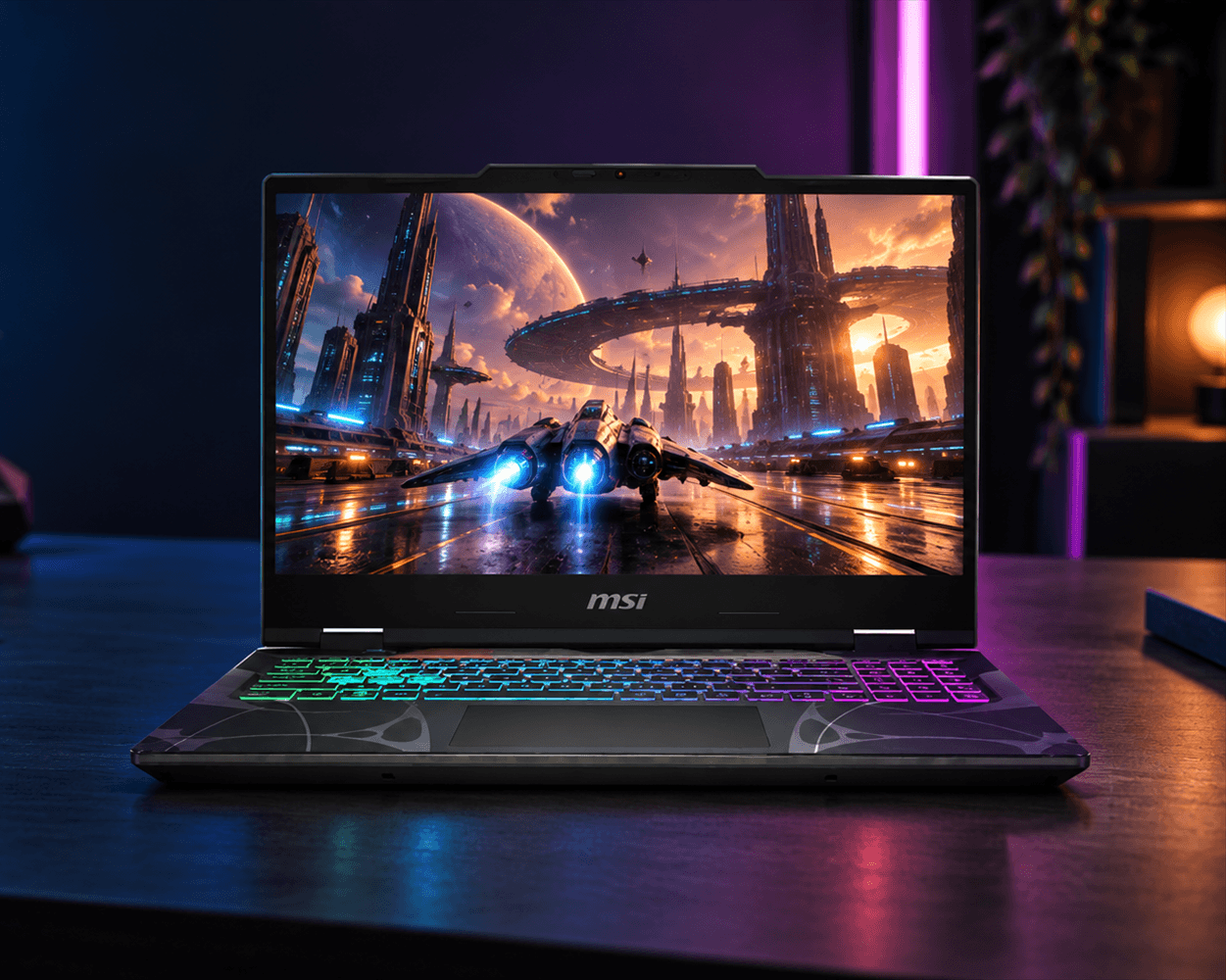
Start with the games you want to play
Think about the games, screen resolution and speed you want. Then use the options below to find a sensible starting point.
Competitive play
For games like COD, Fortnite and League of Legends
- Look for a screen with at least 144Hz. This updates the picture more often and can make movement look smoother.
- Compare RTX 5050 or RTX 5060 laptops as a starting point
- Check the internet connection and ports for your mouse, keyboard, headset and other accessories
AAA and ray tracing
For games like GTA, Cyberpunk 2077, DOOM: The Dark Ages and Resident Evil Requiem
- Compare RTX 5070, RTX 5070 Ti, RTX 5080 and RTX 5090 options
- Look for ray tracing and DLSS if your games support them. These can enhance lighting or image quality.
- Make sure the graphics card suits the screen resolution
Stream, create and use AI
If you are streaming and editing content or using AI tools, look for extra memory and storage as well as a capable graphics card.
- Consider 32GB RAM or more for streaming, creative work or several apps at once
- An RTX 5080 or 5090 can help with large-scale rendering
- Some Intel Core Ultra and AMD Ryzen AI processors include an NPU, a small chip for AI tasks
The main parts of a gaming laptop
The graphics card and processor do most of the work, but the screen, memory, storage and cooling also matter. Here is what each part does.
Other details worth checking
The graphics card and processor are important, but these details also affect how the laptop feels to use.
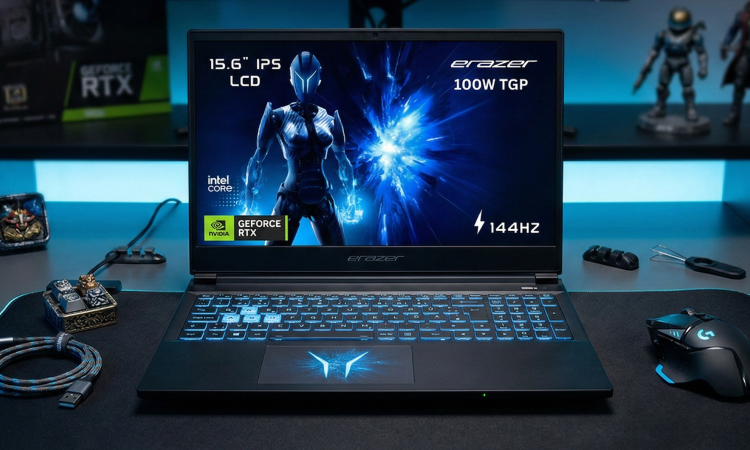
A gaming laptop needs its graphics card, processor, screen and cooling to work together.
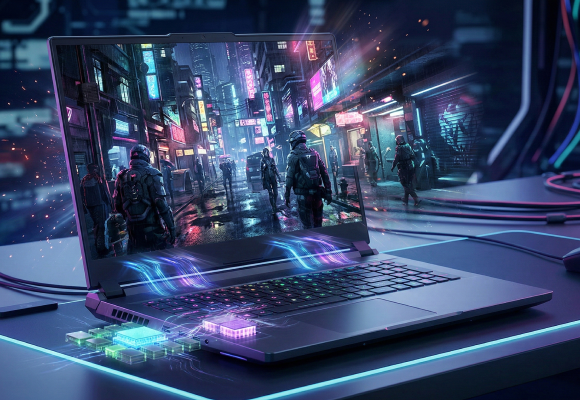
Compare the exact graphics card model and its power setting on the product page.
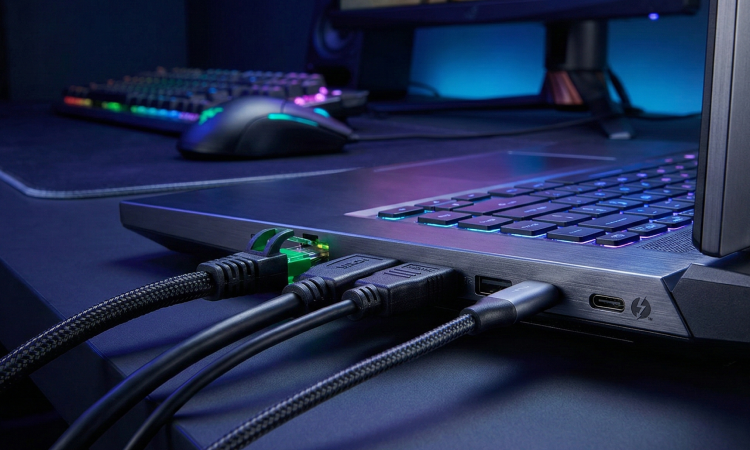
Check the USB, USB-C, HDMI, Ethernet and audio ports for your accessories and external screen.
Compare graphics card options
The graphics card has the biggest effect on game visuals. Use these options as a guide, then check the exact model's power, graphics memory, cooling and screen.
A quick graphics card comparison
Use the table to choose a starting point. Game settings, laptop power and cooling all affect the result.
| Graphics card | What it suits | Check before you buy |
|---|---|---|
| RTX 5050 and RTX 5060 | FHD, competitive and everyday gaming | Graphics memory, graphics power, screen refresh rate and game requirements |
| RTX 5070 and RTX 5070 Ti | QHD, higher settings and supported ray tracing | Cooling, power settings and DLSS support |
| RTX 5080 | High settings, QHD and creative work | Laptop size, screen connections, graphics memory and software support |
| RTX 5090 | High-resolution gaming, AI and creative work | Power, cooling, size and the exact screen |
| AMD Radeon graphics | An alternative graphics card option | Exact model, graphics memory, power and supported features |
Compare processor options
The processor runs the game and helps with other apps. It matters most for fast games, simulation games and when you do several things at once. Compare it with the graphics card, screen and cooling.
A quick processor comparison
Use the processor level to choose a starting point, then compare the exact model with the graphics card, screen, memory and cooling. Processors in the same family can perform differently in different laptops.
| Processor | What it suits | Price level | Check before you buy |
|---|---|---|---|
| Intel Core 3, Core 5 and Core i5 | Everyday use, lighter gaming and FHD gaming | Starting option | Generation, cores and threads, H or HX label and graphics card |
| Intel Core 7 and Core i7 | Fast gaming, streaming and several apps | Mid-range to higher performance | Exact model, power class, cooling and graphics card |
| Intel Core 9 and Core i9 | Simulation games, creative work and high-end graphics cards | High-end processor | Generation, H or HX label, cooling and overall balance |
| Intel Core Ultra 5 | Gaming with AI features in thinner or premium laptops | AI-capable starting option | Series, NPU, graphics card and app support |
| Intel Core Ultra 7 | Gaming, fast screens, creative work and AI tools | AI-capable performance | Exact model, NPU, suffix, cooling, RAM and graphics card |
| Intel Core Ultra 9 | High-end gaming, creative work and local AI tools | Premium processor and AI | Series, power, cooling, memory and software support |
| AMD Ryzen 3, Ryzen 5 and Ryzen 7 | Lighter gaming through to demanding gaming and streaming | Starting through to stronger performance | Ryzen series, exact model, cores and threads, power class and graphics card |
| AMD Ryzen 9 and Ryzen AI 7 or 9 | High-end gaming, creative work and supported AI tools | High-end gaming and AI | Exact model, cache or NPU, RAM, graphics card, cooling and app support |
Match the processor and graphics card to your games
The processor and graphics card work together. Use these three examples to choose a sensible starting point, then check the screen, memory and cooling.
01 / Competitive play
Fast response and a smooth picture
For FPS games , match the processor and graphics card to a quick screen.
- Processor
- Compare Core 5 or 7, or Ryzen 5 or 7
- Also check
- 144Hz or higher, response time, graphics output and cooling
- Recommended GPUs
- RTX 5050 or RTX 5060 as a starting point. Check the exact laptop.
02 / AAA and QHD
More detail for demanding RPG, AAA games
QHD screens look sharper, but they need more graphics power.
- Processor
- Compare Core 7 or 9, or Ryzen 7 or 9
- Also check
- RAM, graphics memory, screen resolution, power and cooling
- Recommended GPUs
- RTX 5070, RTX 5070 Ti or RTX 5080 for QHD and higher settings
03 / Stream, create and use AI
Gaming plus creative work
Streaming, editing and AI tools need extra processing, memory and storage.
- Processor
- Compare Core Ultra, Core 9, Ryzen 9 or Ryzen AI
- Also check
- 32GB RAM, storage, graphics memory, NPU and cooling
- Recommended GPUs
- RTX 5070 Ti, RTX 5080 or RTX 5090, depending on your software and workload
Other features to check
These details affect day-to-day use, game loading, screen quality and how easy the laptop is to carry.
Memory
16GB is a useful starting point. Choose 32GB or more for streaming, creative work or AI tools. Check if it can be upgraded.
Storage
512GB suits a smaller game library. 1TB gives more room for Windows and games. Choose 2TB or more for a large library.
Display
FHD, QHD and 4K describe picture detail. OLED and Mini LED can enhance contrast and colour.
Refresh rate
144Hz is a useful starting point. 240Hz or 360Hz can suit competitive games if the graphics card can keep up.
Ports
Check USB-A, USB-C, HDMI, Ethernet and audio for your accessories and external screen.
Cooling
Look for clear vents, good cooling and the right charger. These help during long gaming sessions.
Keyboard and camera
Check the keyboard layout, lighting, webcam and microphone.
Portability
Smaller laptops are easier to carry. 17.3-inch and 18-inch models suit a larger-screen setup at home.
AI features in simple terms
Some gaming laptops use AI for game visuals or creative work. The feature must be supported by the laptop, game or app.
In games
Sharper pictures and extra frames
DLSS can make supported games look sharper and run more smoothly. RTX 50 Series laptops can also create extra frames in supported games. Check the game supports the feature.
In the processor
An NPU for AI tasks
Some Intel Core Ultra and AMD Ryzen AI processors include an NPU, a small chip for supported AI tools. You do not need one for most games.
For streaming and creating
Check the software
AI can help with noise removal, backgrounds, cameras, video and other creative tools. Check the app requirements, graphics memory, RAM and storage before you buy.
Shop by what you need
Choose the category that matches your setup, then compare the full specification before you buy.
A simple gaming laptop checklist
Use this list while you compare laptops. Confirm the details on the product page before you buy.
0 of 8 checked
Gaming laptop questions, answered
Do gaming laptops need a dedicated graphics card?
For modern 3D games, a dedicated graphics card is usually the better choice. It has its own graphics memory and is built for demanding visuals. Integrated graphics can be fine for lighter games, so check the games' requirements.
Is an RTX 5070 laptop better than an RTX 5060 laptop?
RTX 5070 is a higher graphics card level, but performance also depends on the laptop's graphics power, cooling, processor, screen and settings. Compare the full specification, not just the graphics card name.
Does a higher-level processor always mean better gaming?
No. The graphics card often matters more in demanding games. Processor choice matters more for CPU-heavy games, high refresh rates, simulation, streaming and creative work.
What do H and HX mean on laptop processors?
H and HX are labels for higher-performance laptop processors. The exact model, power and cooling still matter, so check the full specification.
What does DLSS do for gaming?
DLSS uses AI to make a game image look sharper while using less graphics power. Supported RTX 50 Series laptops can also use Multi Frame Generation, which adds generated frames. Check that your game supports the feature.
Do I need an NPU in a gaming laptop?
Not for every game. An NPU helps with supported AI assistants, camera, audio and other AI tasks. It works alongside the processor and graphics card.
How much RAM and storage should a gaming laptop have?
16GB RAM and a 1TB SSD are useful starting points for many gaming laptops. Consider 32GB and more storage for streaming, creative work, AI tools or a large game library. Check upgrade options.
Can I connect a gaming laptop to an external monitor?
Yes, if the laptop's video output and cable support the monitor's resolution and refresh rate. Check HDMI, USB-C, DisplayPort or Thunderbolt on both products.
Use a hard, flat surface and keep the laptop's intake and exhaust vents unobstructed. Follow the manufacturer's guidance for cleaning, charging and performance modes.
Ready to compare gaming laptops
Use the filters to compare graphics card, processor, screen, memory and storage. Then check the full specification for the games and setup you have in mind.