











How-to guide | Console gaming
How to pick the best monitor for a PS5
Choose a PS5 monitor by matching its resolution, refresh rate, HDMI connection and gaming features to the way you play.
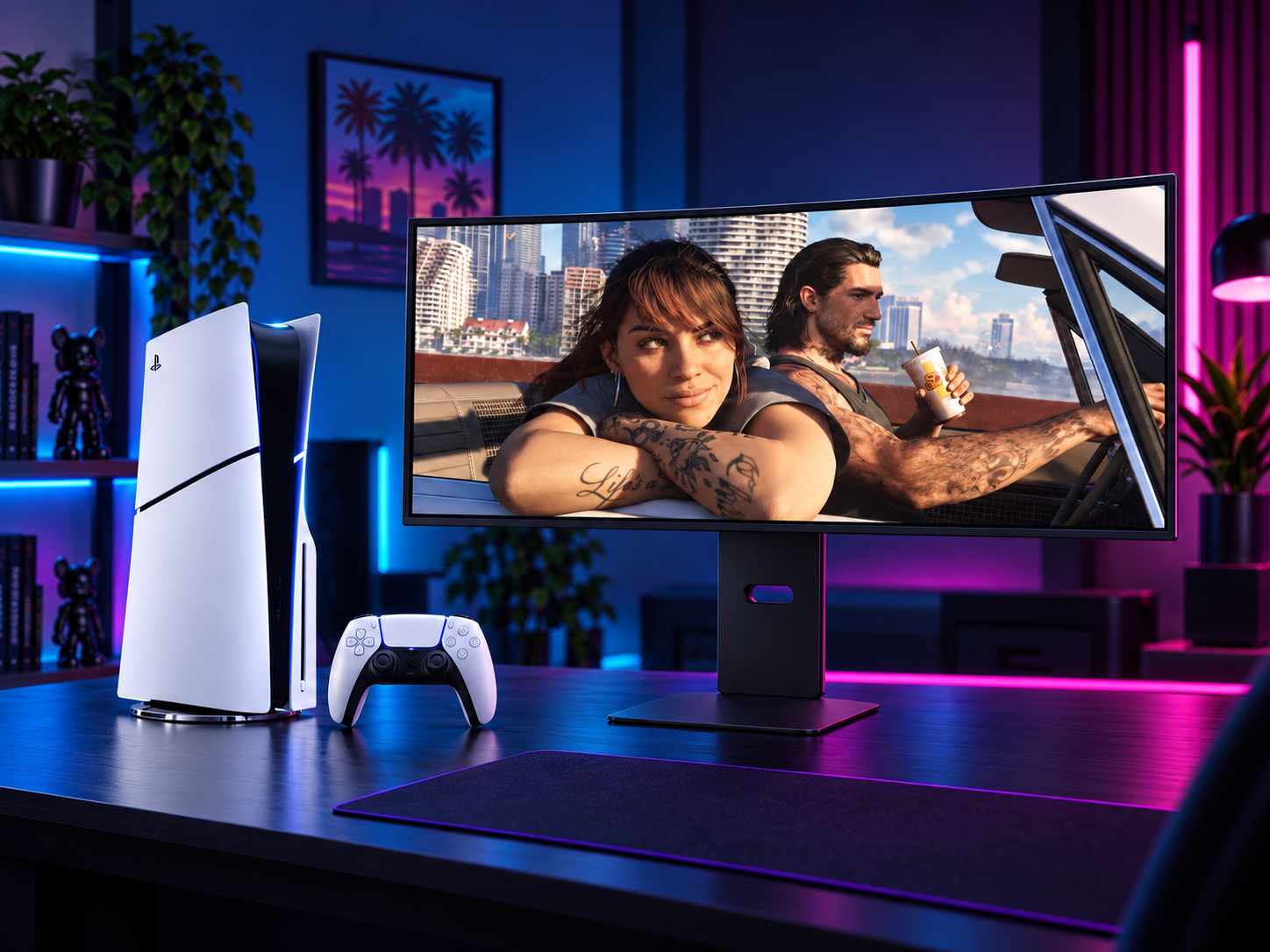
You only need a monitor with an HDMI port to connect a PS5. If you want 4K gaming at up to 120Hz, choose a monitor with HDMI 2.1 and confirm that its specification supports 4K at 120Hz through that port.
Step one
Start with resolution and refresh rate
These two specifications have the biggest effect on how your PS5 games look and feel.
Resolution
Choose 4K UHD for the sharpest image from a compatible PS5 game. A 1440p or Full HD monitor can still work well, especially if you prefer a smaller screen or a lower-cost setup.
Refresh rate
A 60Hz monitor is suitable for games running at 60 frames per second. A 120Hz monitor can display supported 120fps modes more smoothly, provided the console, game and connection support them.
Response time
A low quoted response time can help reduce visible ghosting during fast movement. Treat it as one part of the decision, alongside reviews, panel quality and the monitor’s gaming modes.
Step two
Check the connections and gaming features
Read the detailed monitor specification rather than relying on a feature name alone. The port and supported mode need to match your target output.
Step three
Match the monitor to your setup
There is no single specification combination that suits every PS5 player. Use your preferred games, desk space and budget to choose the right balance.
| What you want | Look for | Keep in mind |
|---|---|---|
| Sharp image and cinematic games | 4K UHD, 60Hz or higher, HDR | Check brightness and viewing distance, not just the HDR label. |
| Fast competitive gameplay | 120Hz or higher, low input lag, VRR | Use HDMI 2.1 if you also want 4K at 120Hz. |
| A compact desk setup | 24 to 27 inches, Full HD or QHD | A smaller screen can be easier to view comfortably at a desk. |
| One screen for console and PC | HDMI, DisplayPort, suitable resolution and refresh rate | Check that the monitor supports the target settings on each device. |
Final check
Use this PS5 monitor checklist
Before you choose a model, check each item against the monitor’s full specification.
0 of 6 checked
Find a monitor for your gaming setup
Compare gaming monitors by screen size, resolution, refresh rate and connection to find a display that suits your PS5.
Browse gaming monitorsYour questions
PS5 monitor FAQs
Does a PS5 monitor need HDMI 2.1?
No. Any suitable HDMI input can connect a PS5. HDMI 2.1 is important when you want 4K gaming at up to 120Hz. A monitor with HDMI 2.0 may be suitable for 4K at 60Hz or lower-resolution 120Hz gaming, depending on its specification.
Is 144Hz useful for a PS5?
A PS5 can output compatible games at up to 120Hz, so a 144Hz monitor can display that signal. You won’t get 144Hz from the PS5 itself, but the extra monitor headroom may be useful if you also connect a PC.
Is 4K better than 1440p for PS5?
4K can provide a sharper image, especially on a larger screen. 1440p can be a practical choice for a smaller desk setup or when you want to balance image detail with other features such as a higher refresh rate.
Do I need speakers in a PS5 monitor?
No. You can use a headset connected to the controller or another compatible audio setup. Built-in speakers or a headphone output can make a monitor more convenient, so check for them if you want audio through the display.