











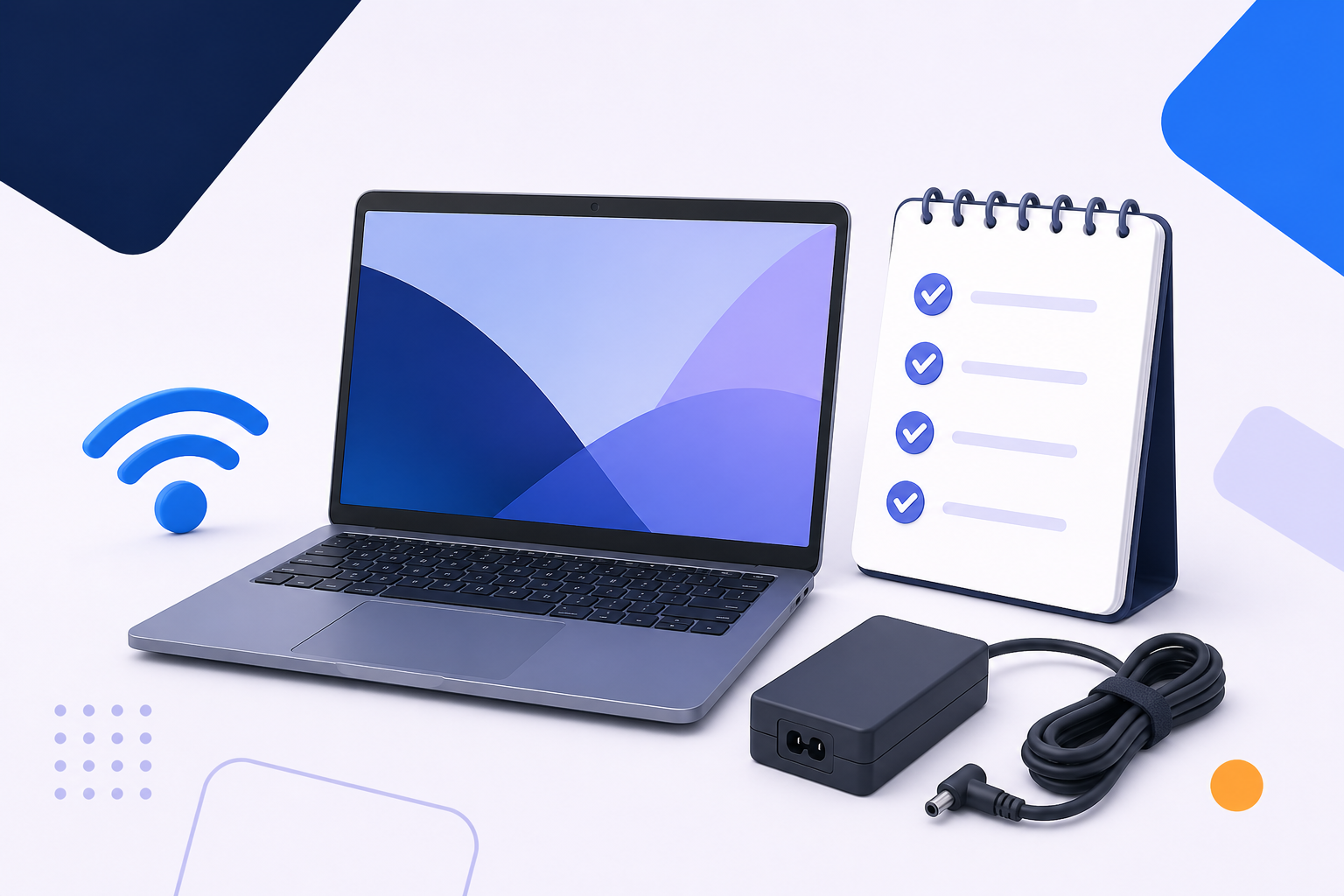
Choose a laptop around how your child will use it
The right specification depends on the work behind the screen. Select the closest match, then use it as a starting point for comparing products.
Homework and research
For documents, browser research, online lessons and video calls, focus on straightforward everyday performance, a clear screen, a comfortable keyboard and a webcam and microphone that meet the product details.
- 8GB memory is a sensible starting point for many school tasks
- An SSD helps apps and saved work feel responsive
- Check that the operating system works with school accounts and software
Creative projects
Photo editing, music, drawing and video projects can ask more of a laptop. Start with the software’s requirements, then check the processor, memory, storage and display together.
- 16GB memory may suit heavier multitasking or creative software
- More SSD storage helps when projects are kept locally
- Check display colour details and software compatibility before buying
Coding and STEM
Beginner coding tools often run in a browser, while development environments, simulations and specialist software can need more memory and storage. Check the exact tools before choosing.
- Choose an operating system that supports the required coding tools
- Look for enough memory for an editor, browser and test environment together
- Prioritise ports and a comfortable keyboard if accessories will be connected
Gaming and entertainment
Browser games, streaming and casual play need less graphics power than demanding 3D games. If gaming is a major part of the plan, check each game's requirements rather than choosing from the screen size alone.
- Dedicated graphics may be needed for demanding games
- Check screen refresh rate, graphics and cooling as a set
- Compare weight and charger size if your child carries the laptop
Compare the main laptop types
Swipe through the options. The most capable laptop is not automatically the most useful choice for your child.
Shop by what your child needs
Once you know the main use, go straight to the most relevant laptop category.
Check the features that matter
Specifications are useful when they answer a real question. Here is what each one changes for your child.
Match the specification to the task
Use this table as a quick comparison, then confirm the exact requirements of the apps, games or school systems involved.
| If your child mainly | Start by checking | Why it matters |
|---|---|---|
| Browses, writes and joins lessons | ChromeOS or Windows, SSD storage, 8GB memory, webcam and microphone | Supports browser tabs, documents, calls and everyday school tasks |
| Creates photos, music or video | Software compatibility, processor, 16GB memory where required, SSD capacity and screen details | Creative applications can use more memory and local storage than basic browser work |
| Learns coding or uses specialist tools | Operating-system support, processor, memory, storage and the ports needed for accessories | Some tools work in a browser, while others need a desktop environment |
| Plays demanding 3D games | Game requirements, dedicated graphics, screen refresh rate, cooling and charger size | Graphics requirements vary, and a gaming design may be less convenient to carry |
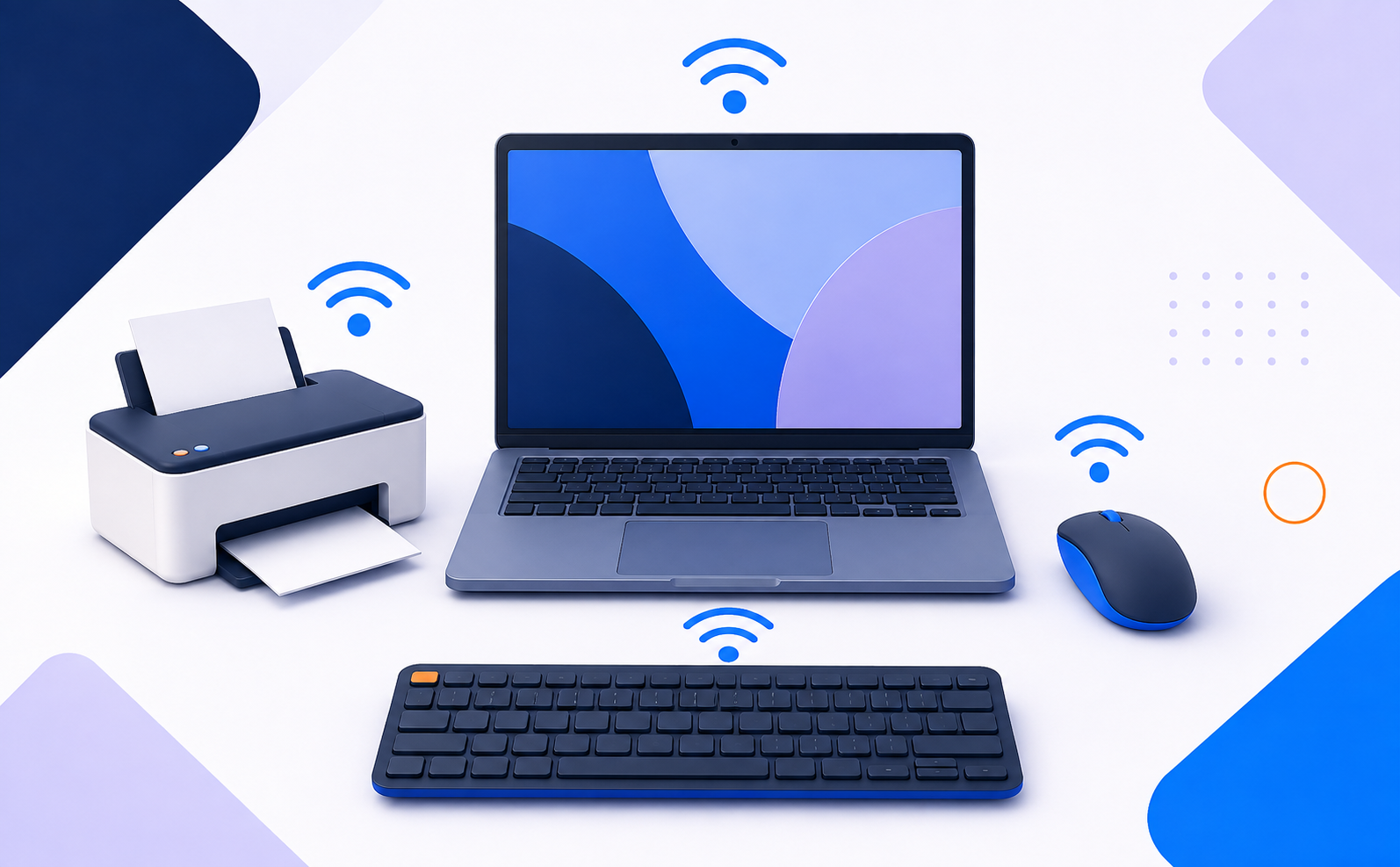
Plan the setup as well as the laptop
The laptop is only part of the setup. Think about where your child will use it, how they will carry it and which accessories make schoolwork easier.
Carry it safely
Check the laptop’s closed dimensions before choosing a bag or sleeve. Leave space for the charger and any accessories.
Make typing comfortable
A mouse, headset or external keyboard may help, depending on the desk and how your child works.
Keep the space clear
Give the laptop a stable surface with room for ventilation, cables and books. Follow the product guidance for charging and care.
Use this parent-friendly buying checklist
Tick each point as you compare products. The checklist stays on this page and does not save personal information.
0 of 8 checked
Laptops for kids questions, answered
Is a Chromebook good for schoolwork?
It can be a good fit for browser-based work, documents, video calls and Google services. Check the school’s required apps, account type and whether your child needs software that only runs on Windows or macOS.
How much memory does a child’s laptop need?
8GB is a sensible starting point for many browser, document and video-call tasks. Consider 16GB when your child uses demanding creative software or regularly keeps many applications open, and check the software requirements first.
What screen size is practical for a child?
A 13- or 14-inch laptop can be easier to carry, while a 15.6-inch model provides more room for documents and split windows. Compare the complete dimensions and weight, not the screen size alone.
Does a child need a touchscreen?
No. Touch is most useful when your child wants tablet-style navigation, drawing or handwritten notes. For a standard laptop, prioritise the keyboard, screen, software and overall fit for their tasks.
Should I buy a gaming laptop for school?
Only if the games or creative applications need the extra graphics capability. Otherwise, an everyday laptop may be simpler to carry and better matched to schoolwork. Check the software and game requirements before choosing.
What should I check before buying a laptop for school?
Check the school’s required accounts, websites, apps, file types and accessories. Then compare the operating system, memory, SSD storage, screen, webcam, microphone, ports, dimensions and weight on each product page.
Set up a child account where the platform supports it, review web, app and screen-time settings together, and agree simple rules for downloads, messages, webcams and sharing personal information. Keep the laptop and its apps updated, and encourage your child to ask before responding to an unexpected message or pop-up. If you want an extra security option, explore Norton 360 Deluxe.
Ready to compare laptops for your child
Use the main task to narrow down the laptop type, then compare current models by operating system, screen, memory, storage and the features your child will use most.