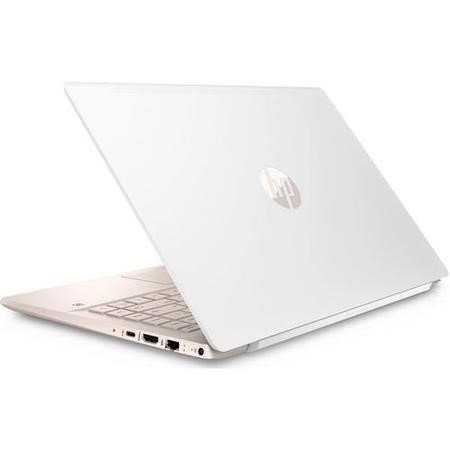
Slim, lightweight design
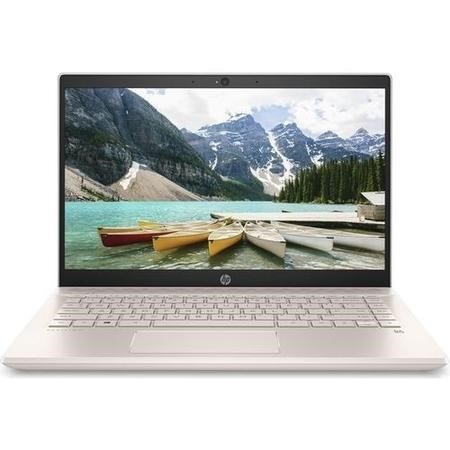
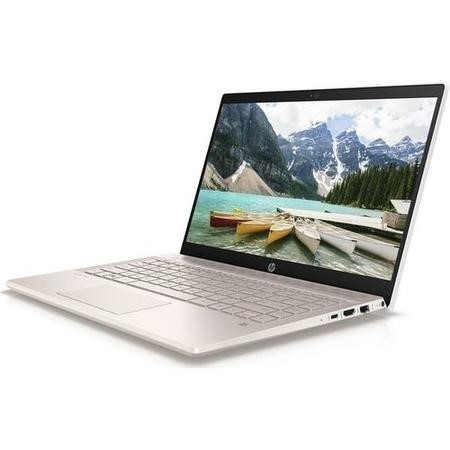
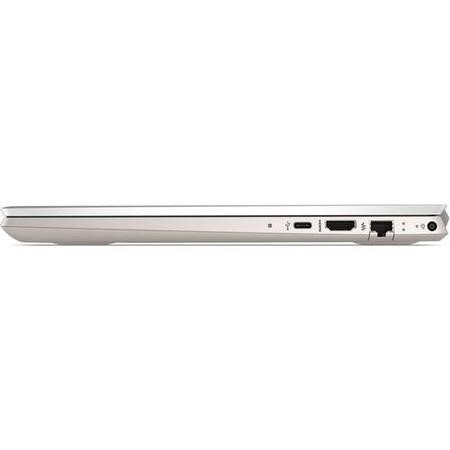
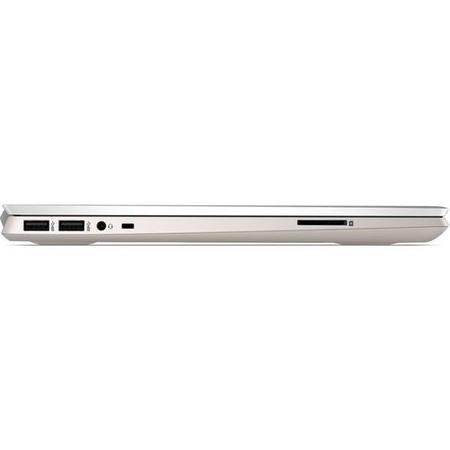
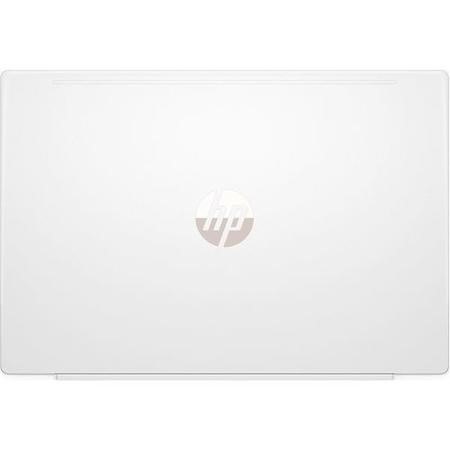
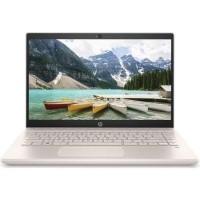
The HP Pavilion 14-ce0523sa 14" Intel Pentium Gold Laptop has a thin, lightweight design so that you can easily carry it around with you. With a narrow bezel, an elevated keyboard, a smooth metal finish and a 14" screen, you can easily check your favourite online websites and work on documents wherever you go.
Intel Pentium processor
Powered by an Intel Pentium Gold processor, the Pavilion delivers a responsive and reliable performance to keep you connected. Whether you're streaming online content, surfing social media websites, or just generally multi-tasking, you can enjoy a long-lasting performance to keep up with your demands.
For quick and easy access to your files, the laptop features a 128 GB SSD so everything opens in no time.
Elevate your content
With B&O Play software, you can choose from music, movie and voice presets to suit what you're listening to. You can even play with the EQ to find your ideal sound signature.
With audio this good, you'll need great visuals to match. With a Full HD 14" display, you'll get a crisp, vibrant image that won't leave you missing the TV.

Free Upgrade to Windows 10 Home. Windows 10 S is designed for security and performance, but if you'd prefer the full Windows 10 Home experience, it's easy and free to upgrade! Find out how by clicking here »
How to upgrade to Windows 10 Home
Windows 10 in S mode is designed for security and performance, exclusively running apps from the Microsoft Store. If you want to install an app that isn't available in the Microsoft Store, you'll need to switch out of S mode. Switching out of S mode is one-way. If you make the switch, you won't be able to go back to Windows 10 in S mode. There's no charge to switch out of S mode.
1. On your PC running Windows 10 in S mode, open Settings > Updates & Security > Activation
2. In the "Switch to Windows 10 or Switch to Windows 10 Pro" section, select "Go to Store" to open the Microsoft Store (if you also see an "upgrade your edition of Windows" section, be careful not to click to "Go to Store" link that appears there).
3. When the Microsoft Store launches, select the "Get" button. After you see a confirmation message on the page, you'll now be in Windows 10 Home mode and will be able to install apps from outside of the Microsoft Store.