








Get sales advice from our team 7 days a week
0871 244 0934Getting your new wireless headphones working with your laptop is quick and simple, whether you use a Windows PC or a MacBook. Follow these steps to set up your connection in just a few moments.
Explore our latest range of wireless bluetooth headphones and find the perfect sound match for your new connection!
Put your Bluetooth headphones into 'pairing mode'. This usually involves holding down a power or a dedicated Bluetooth button until an LED light flashes (often blue or red/blue). Check your headphone manual if you are not sure.
On your laptop, click the Windows Start button, then go to Settings (the cog icon). Select Bluetooth & devices (or Devices on older versions).
At the top of the settings window, click Add device (or Add Bluetooth or other device). Select Bluetooth.
Your laptop will start scanning. When you see your headphones appear in the list (e.g., "Sony WH-1000XM5"), click on the name to start the pairing process. You may see a brief 'Connecting' message. Once complete, the connection status will change to 'Connected' or 'Paired'.
Just like with Windows, put your Bluetooth headphones into their pairing mode.
Click the Apple logo in the top-left corner of your screen and select System Settings (or System Preferences on older versions of macOS).
In the sidebar menu, click Bluetooth. Make sure the main Bluetooth switch is turned 'On'.
Look for your headphones under the 'Devices' list. Click the Connect button next to their name. Your MacBook will automatically pair and begin using your new headphones for audio.
Having a bit of trouble? Here are a few quick checks to get your sound sorted.
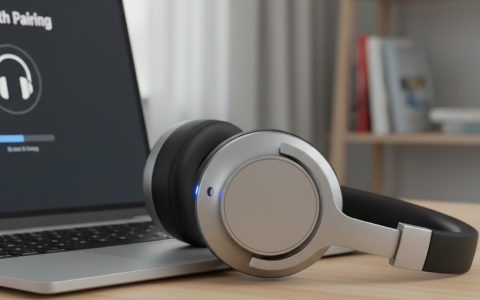
Keep your headphones nice and close to your laptop while pairing. Even a small distance can weaken the Bluetooth signal, which might stop your laptop from spotting them right away.
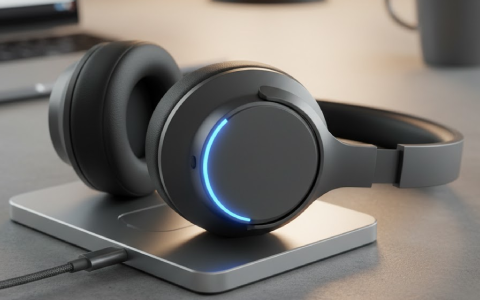
Make sure your headphones have plenty of charge before you start. If the battery drops below 20%, they might limit functions like Bluetooth pairing to save remaining power.

Check that your headphones haven't sneakily connected to your phone or tablet instead. It’s always best to temporarily turn off Bluetooth on your other nearby devices just to be safe.
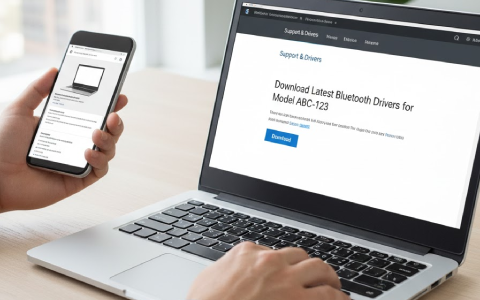
Still having trouble on your Windows PC? Head over to your laptop manufacturer's website and make sure you've downloaded the latest Bluetooth drivers for your model.



